Upgrade a DM License to AI Summary
You can upgrade an existing Live Platform Device Manager service license from Essential to Essential + AI Summary (or from Pro to Pro + AI Summary) to support the AI Summary feature. This process requires the customer to approve the Terms and Conditions in order to activate the AI Summary feature for the Trial period. A secure link to this agreement is sent to the customer tenant admin email account.
For Device Manager, there is currently no difference between Essential and Pro licensing.
|
1.
|
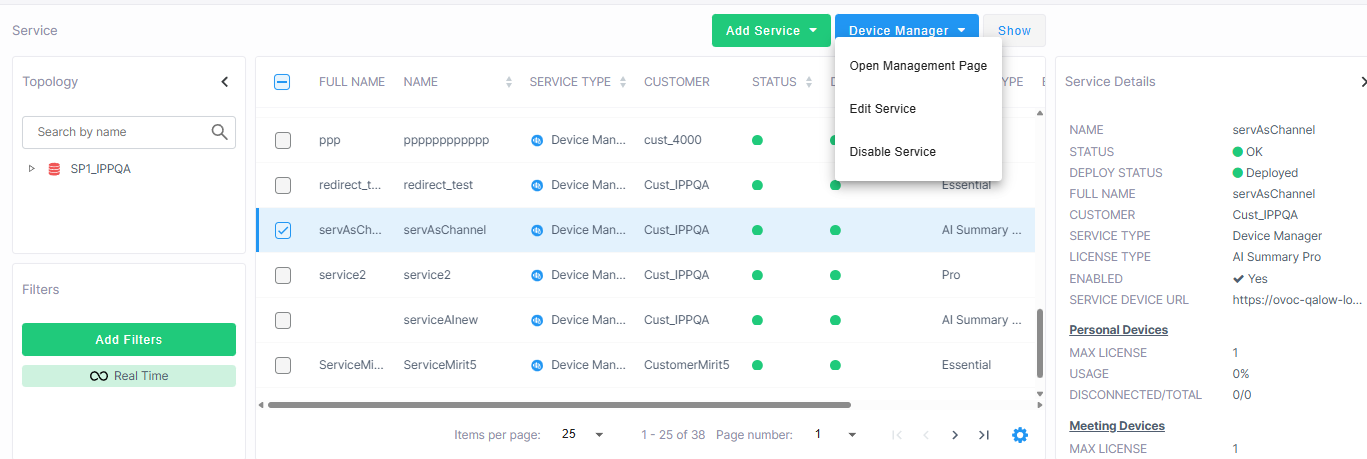
From the Device Manager drop-down, choose Edit Service. |
|
2.
|
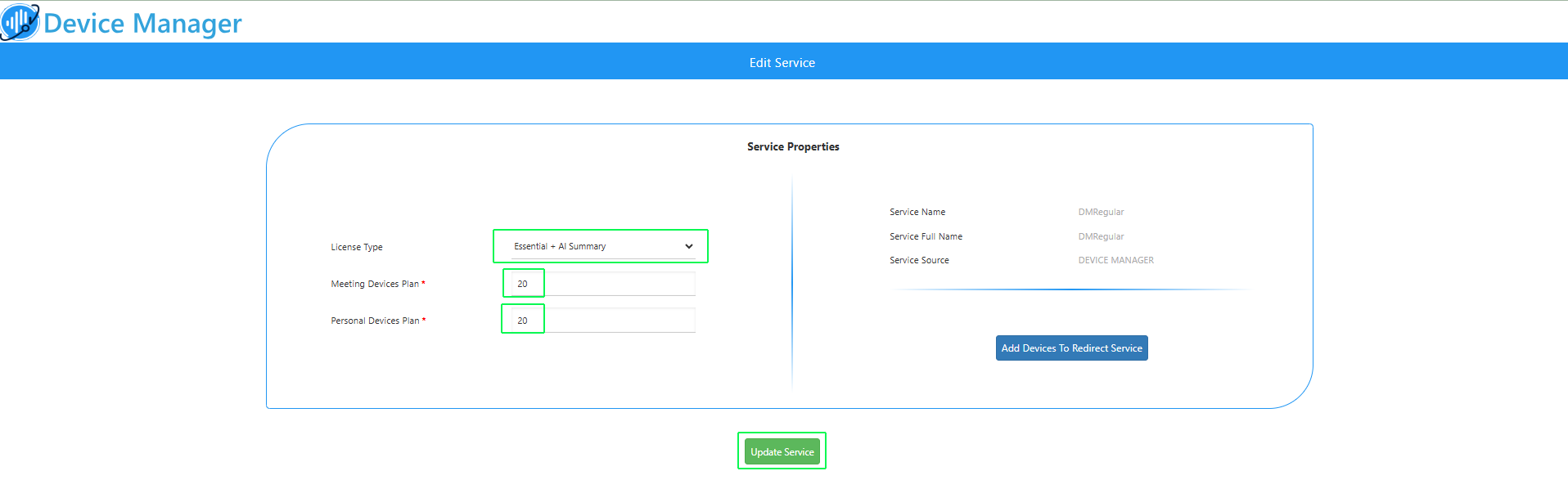
From the License Type drop-down, choose Essential + AI Summary or Pro + AI Summary. |
|
3.
|
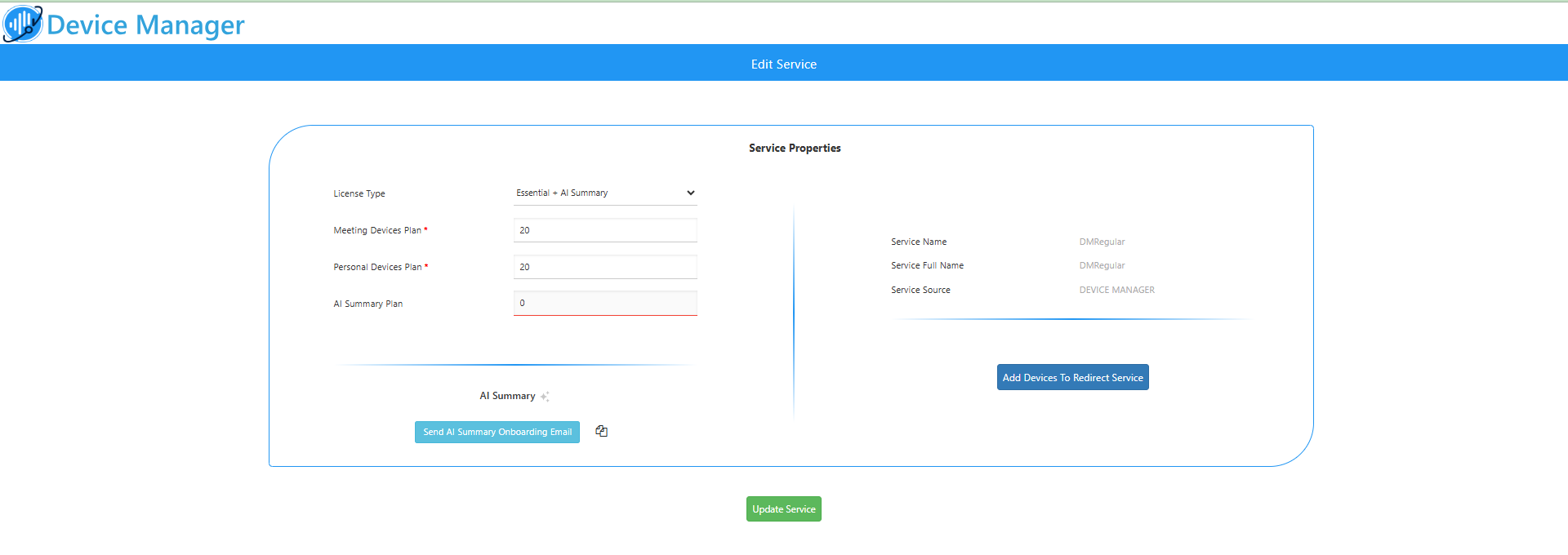
Configure the number of Meeting Room devices to use this feature and configure the number of Personal devices as required, and then click Update Service. |
|
4.
|
Send the Onboarding email to the customer: Click the Send AI Summary Onboarding Email button (or the copy icon to obtain a shareable link). This email contains a unique link to the service's Terms & Conditions. |
|
5.
|
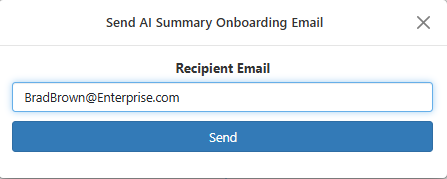
Enter the email address of the customer tenant admin email account and then click Send. |
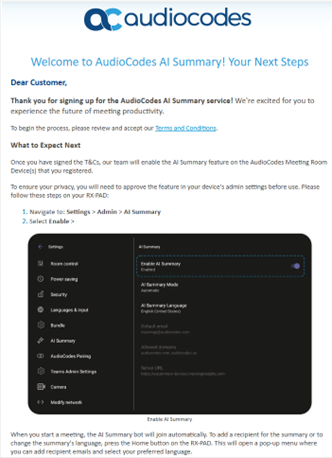
The following Welcome Email is sent to the customer.
|
6.
|
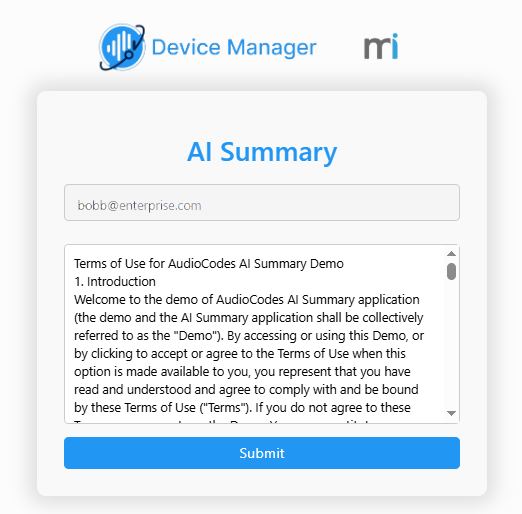
Click Terms and Conditions. The agreement for the Trial version is displayed. Read the content and then click Submit. |
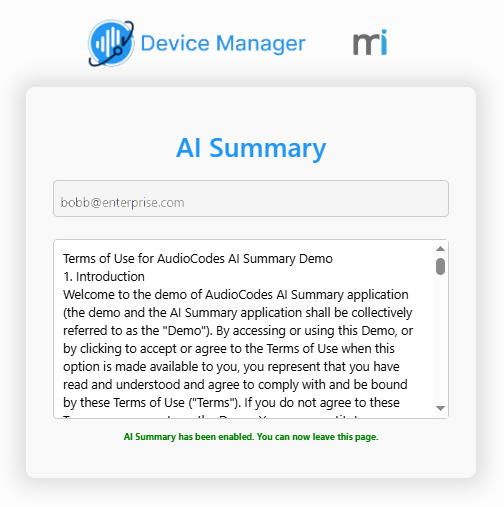
The customer must open the email and accept the Terms & Conditions via the email link. You cannot assign the AI Summary Plan until this agreement has been accepted.
|
7.
|
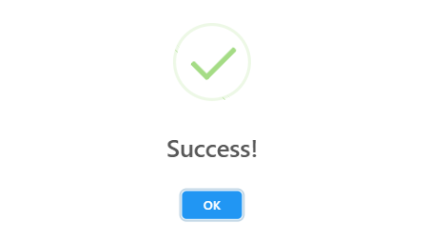
Close the above confirmation dialogs. |
|
8.
|
Once the Terms and Conditions are approved, in the Service Details page, click Update Service and then refresh the page. |
|
9.
|
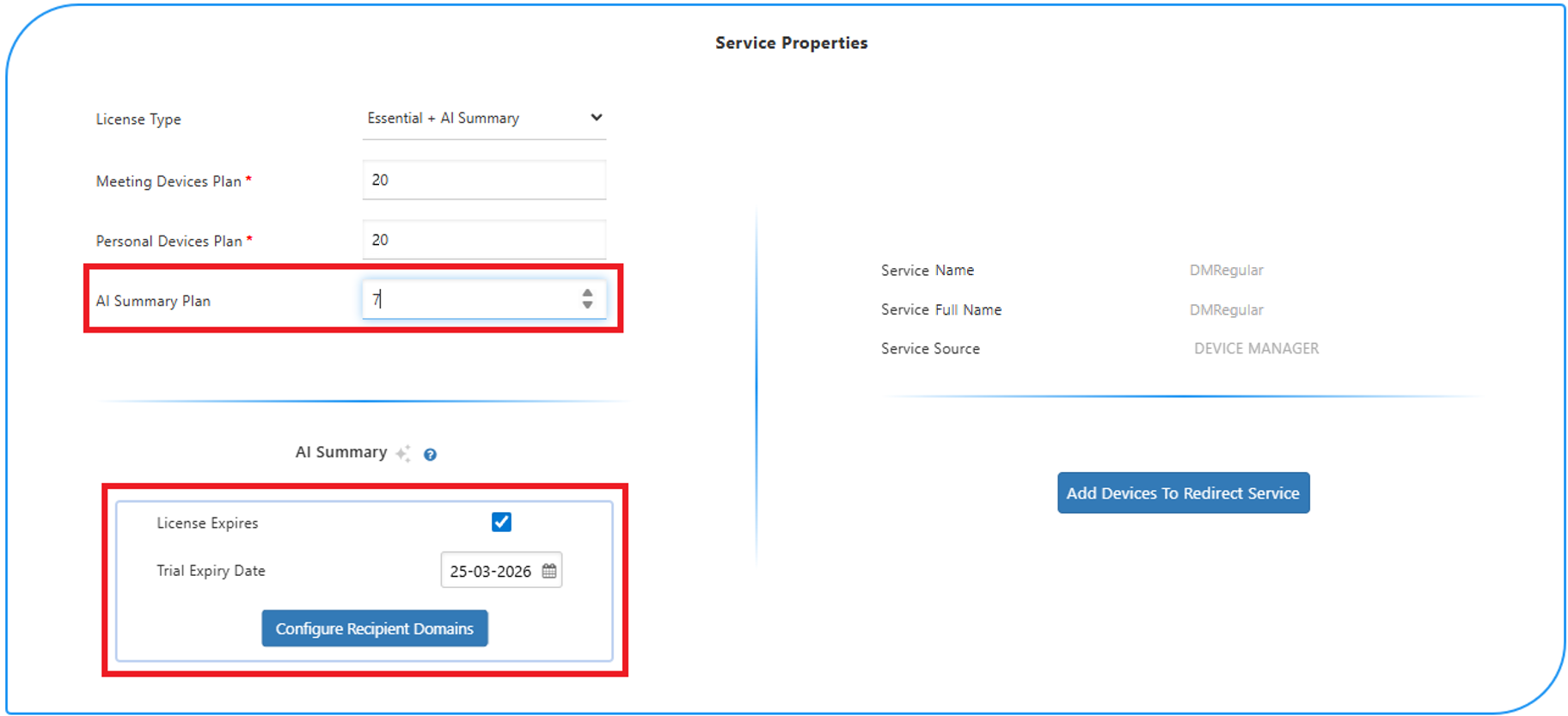
Configure the following: |
|
●
|
The AI Summary Plan parameter for configuring the number of Meeting Room devices to support the feature. |
|
●
|
The License Expires and Trial Expiry Date for setting the expiration date for the trial period. |
License and Trial Period:
|
●
|
For the Free Trial: Leave the License Expires checkbox checked. |
|
●
|
Action Required After Trial: Please be aware that the free trial is automatically stopped after six months. To convert to a paid license and ensure that the service continues uninterrupted, you must return to this screen and uncheck the ‘License Expires’ checkbox. |
|
12.
|
Click Update Service and refresh the page. |